
- Details
- Category: categories -en
Your Joomla powered web site, in this example "My Geographica", needs a method to display and store its content.
The order of creating content for your site is:
- Create categories
- Create articles
- Create menu items
The usual method is by categories and subcategories. Categories can be imagined like buckets. In the categories you store the articles (Main content of web pages), banners, contacts and web links.
Creating various content categories on your Joomla site helps make sure all of your content is placed into the right buckets. It also helps you control which pieces of content are sorted correctly on the front end of your site. In this article, you will learn how to create categories and how to assign them to articles.
Working with Categories
Be default, when you create a new category it will receive a status of “Published”. When you save the category or click Save & Close the category will be live on your site.
For categories, you have many of the same metadata options available as you do when creating articles. These include: publication status, access, tags, notes, and version notes.
Categories can also be sorted into a hierarchy, these are like child/parent relationships. One category can be a parent of another, and likewise a certain category can be the child of another.
When creating and assigning categories, you should have a planned structure. As an example, this is one way of how you would categories several Joomla articles on world's geography. Create two top article categories called "Countries" and "Capitals". Under the "Countries" category, you might have subcategories called "Europe" and "Asia". Under the "Europe" sub category, you might have 3 articles named "Italy," "Spain" and "Portugal".
- Countries
- Europe
- Italy
- Spain
- Portugal
- Asia
- Europe
The example above could be expanded even more with specific articles on different species of Italy, Spain and Portugal. Start with using a "Countries" top Category, placing the sub categories "Europe" and "Asia" are under the "Countries" category, and then a "Italy," "Spain" and "Portugal" sub category under the "Europe" Sub Category.
Now you can create multiple articles in the Italy, Spain and Portugal sub categories using the different genus or common names of the specific types of these 3 countries.
Joomla! comes with a category named "Uncategorised" as the default category for all content types. The "Uncategorised" category may be used for content types which do not fall under a specific category.A content item An article can only belong to one category and each category can only have one parent category.
Create the Categories
To create categories of a website (in this example is for "My Geographica":
- Open the Xampp Control Panel and activate Apache and MySQL by pressing the "Start" buttons in the column "Actions".
- In the browser open the administrator back-end interface of your website by typing : localhost:8012/My Geographica/administrator and press Enter.
- On the dialog box tha twill open (Fig. 1.3.1), insert the Username (admin), the password and click on Login button.
- The administrator back-end interface will open (Fig. 1.3.1), from where you manage your website.
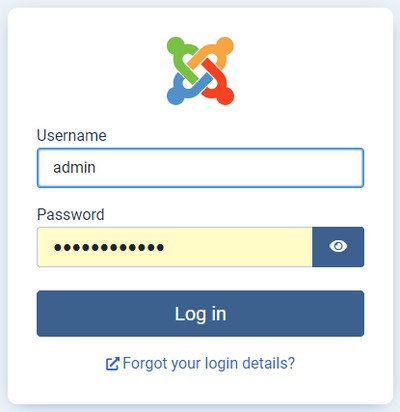 Fig.1.3.1 - Login in website
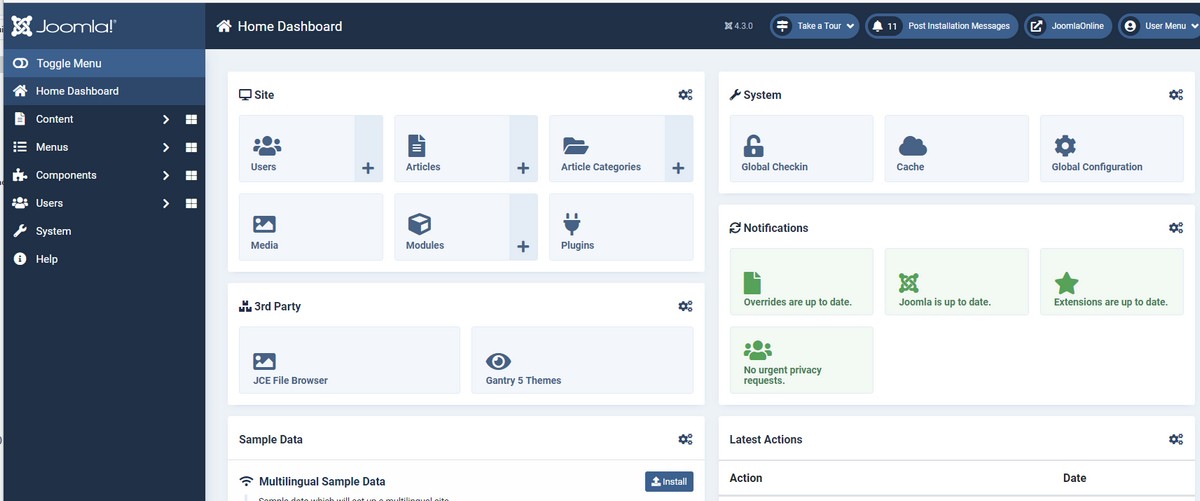 Fig. 1.3.2 - The Administrator back-end interface
In this example, you will first create the category “Countries”, and two categories called “Europe” and "Asia", and assign the category “Countries” as parent to them. In effect, this means that “Europe” and "Asia" are nested categories within the broader category of "Countries".
In the administrator back-end interface of your website, click the menu item Home Dashboard > Content > Categories > Articles: Categories. The " Articles: Categories" window that will open, is the entry point for the creation and administration of categories. It displays all categories in a table with sorting and filtering capabilities. Among other things, you can use it to create, edit, publish and batch process your categories.
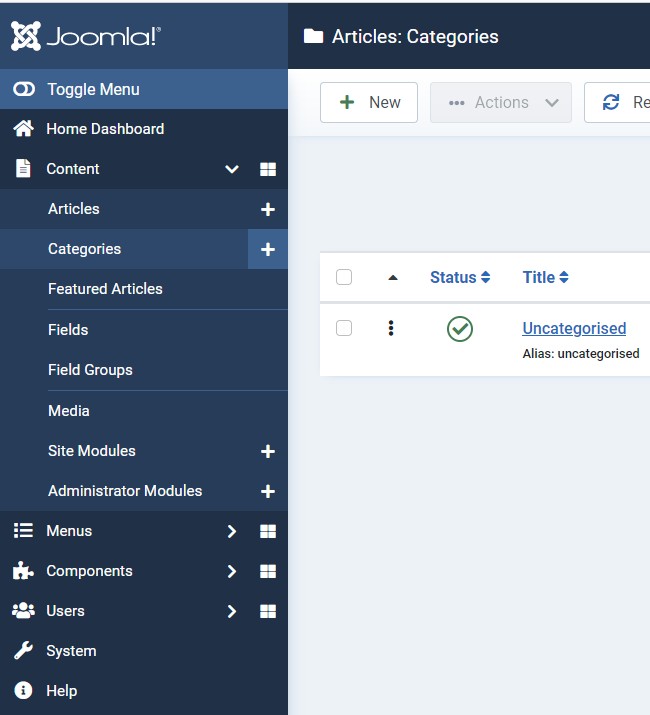
Fig. 1.3.3 - Home Dashboard - Content - Categories
- On the Home Dashboard panel > expand the Content tab > select Categories.
You will notice that exist the default category "Uncategorised". - To create a new category click on tab "New"(Fig.1.3.3).
- On the new panel (Fig.1.3.4) for "Title" type Countries and make sure that "Parent" is set to default No Parent, and "Status" to Published.
- Click on Save & Close. The new category "Countries" created as shown in (Fig.1.3.5).
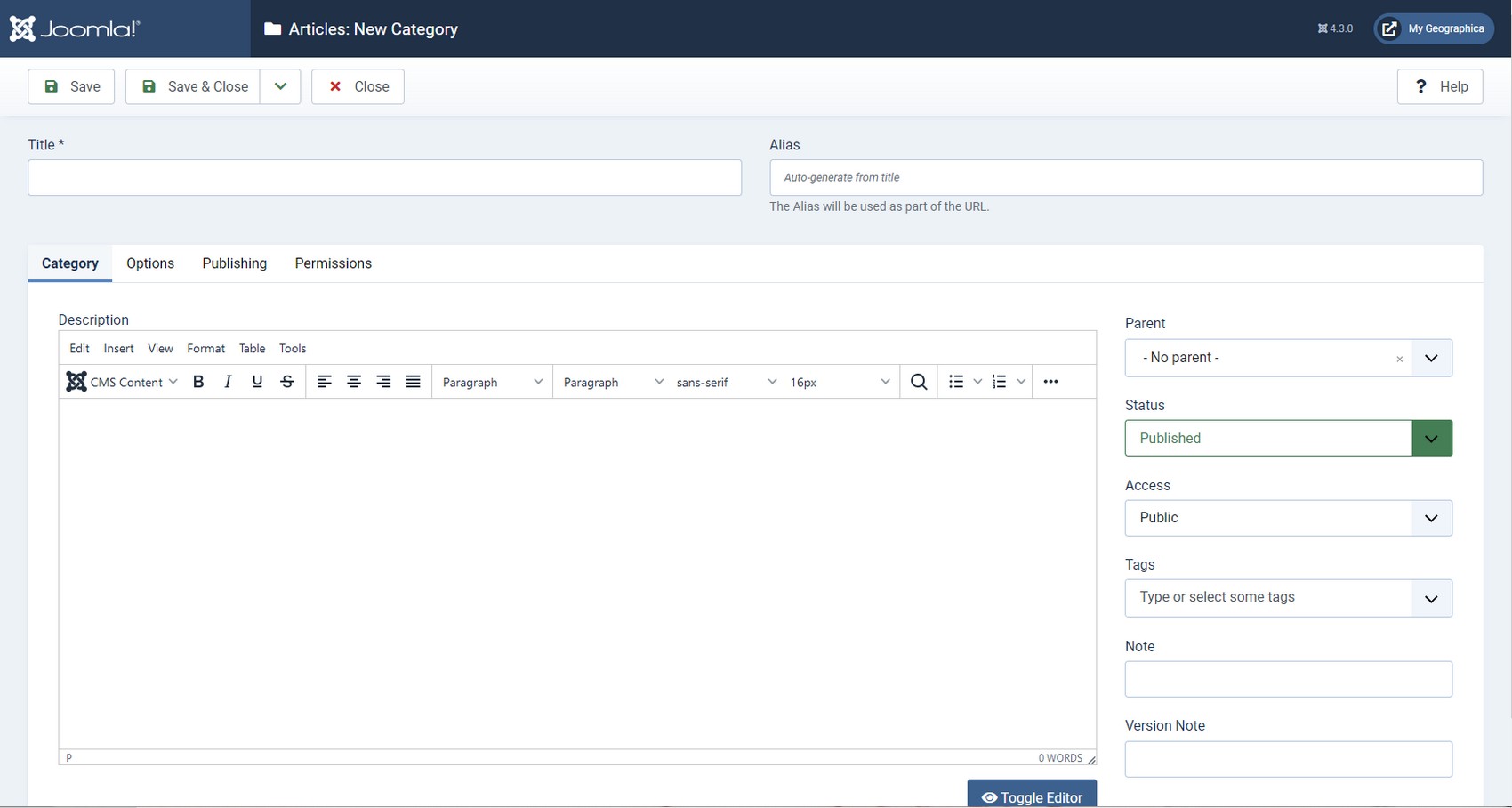 Fig. .3.4 - Create new Category
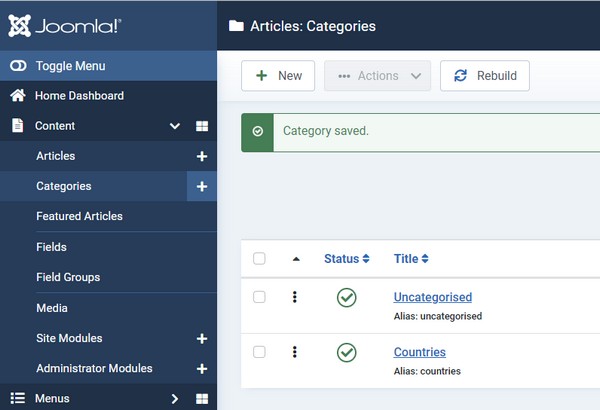 Fig.1.3.5 - Categories
In the same way create:
- The category Capitals setting as "Parent" the default No Parent.
- Two categories Europe and Asia selecting from the drop-down menu of "Parent" the category Countries.
- Three categories Italy, Spain, and Portugal selecting from the drop-down menu of "Parent" the category Europe.
After this the "Article:Categories" panel will be as shown in Fig. 1.3.6.
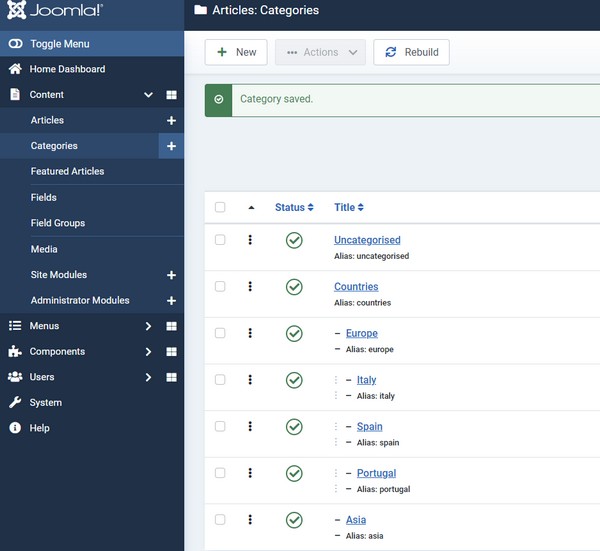 Fig. 1.3.6 - Added Categories panel
Displaying Categories on Your Website
Once your category structure is set up, there are several ways to display them in the front-end. Please note that Joomla will not create menu items for each category automatically. You can create menu items for your category display using the Menu Item Manager, which allows you to choose from different layouts and a variety of configuration options. You may further customize the look and feel of your category display by modifying the CSS file of the you use.